IMC Update Preparation Notice
Please read this notice carefully before arranging the IMC update. The update is intended for vehicles that meet all of the requirements below.
Issues Addressed
- Resolves known issues in software version 19C, including slow start-up behaviour and the music playback track not being remembered after the vehicle is restarted.
- Resolves the issue where the IMC cannot be updated to S22A via SOTA.
Required Conditions
- The vehicle infotainment system must be the NGI type.
-
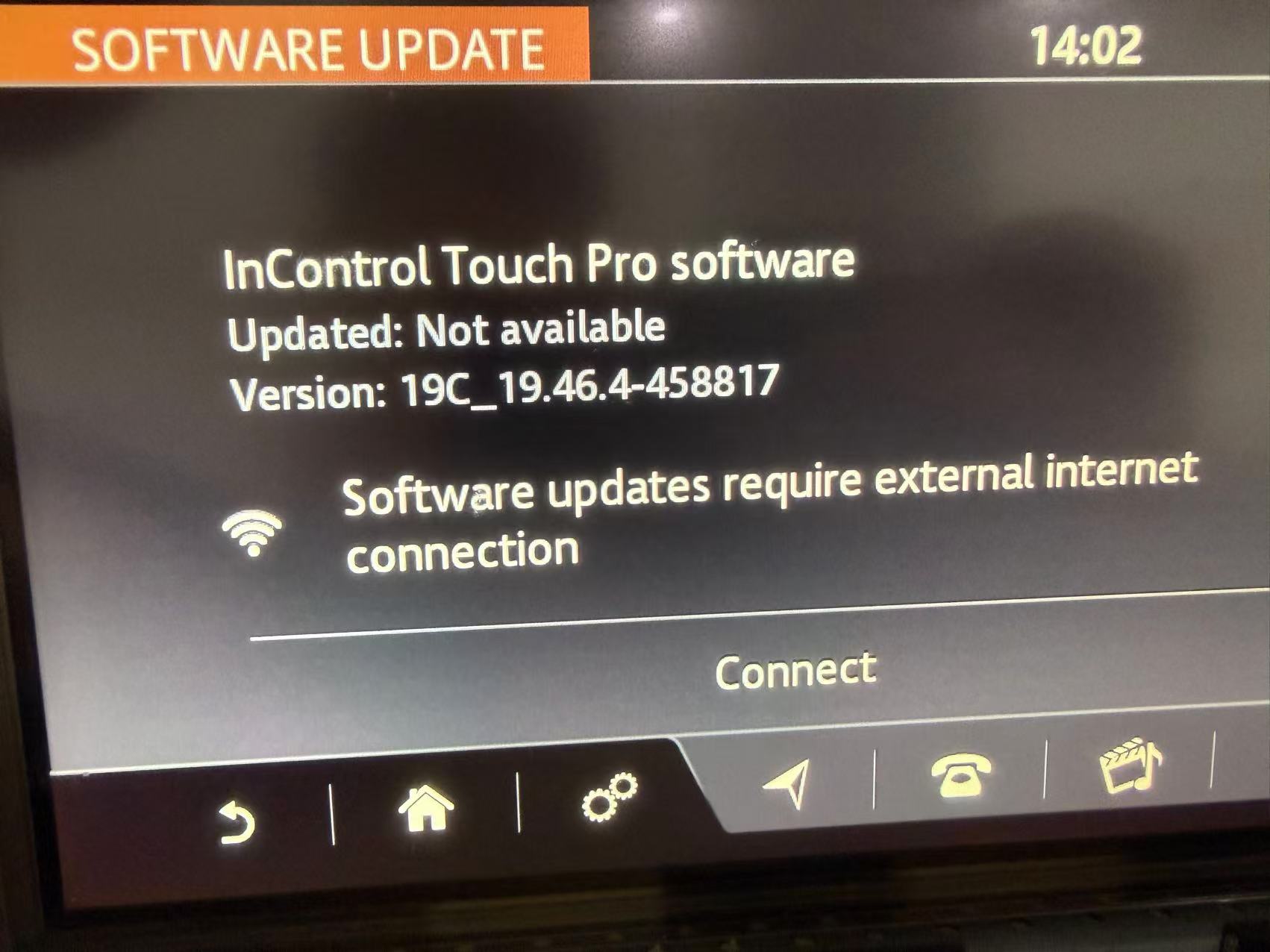
The current IMC hardware unit version in the NGI infotainment system must be:
19C_19.46.4-458817.
If the IMC is not on the required version, please first update it to the required version by using the USB image restoration method.
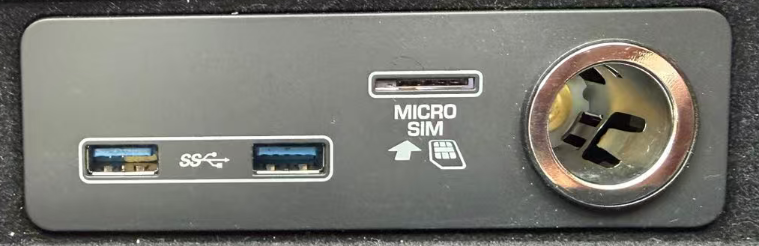
- The USB connector installed in the vehicle infotainment system must be the high-specification type. In addition to having two USB ports, it must also have either a SIM slot or an HDMI port. Only this type is considered a high-specification USB connector.
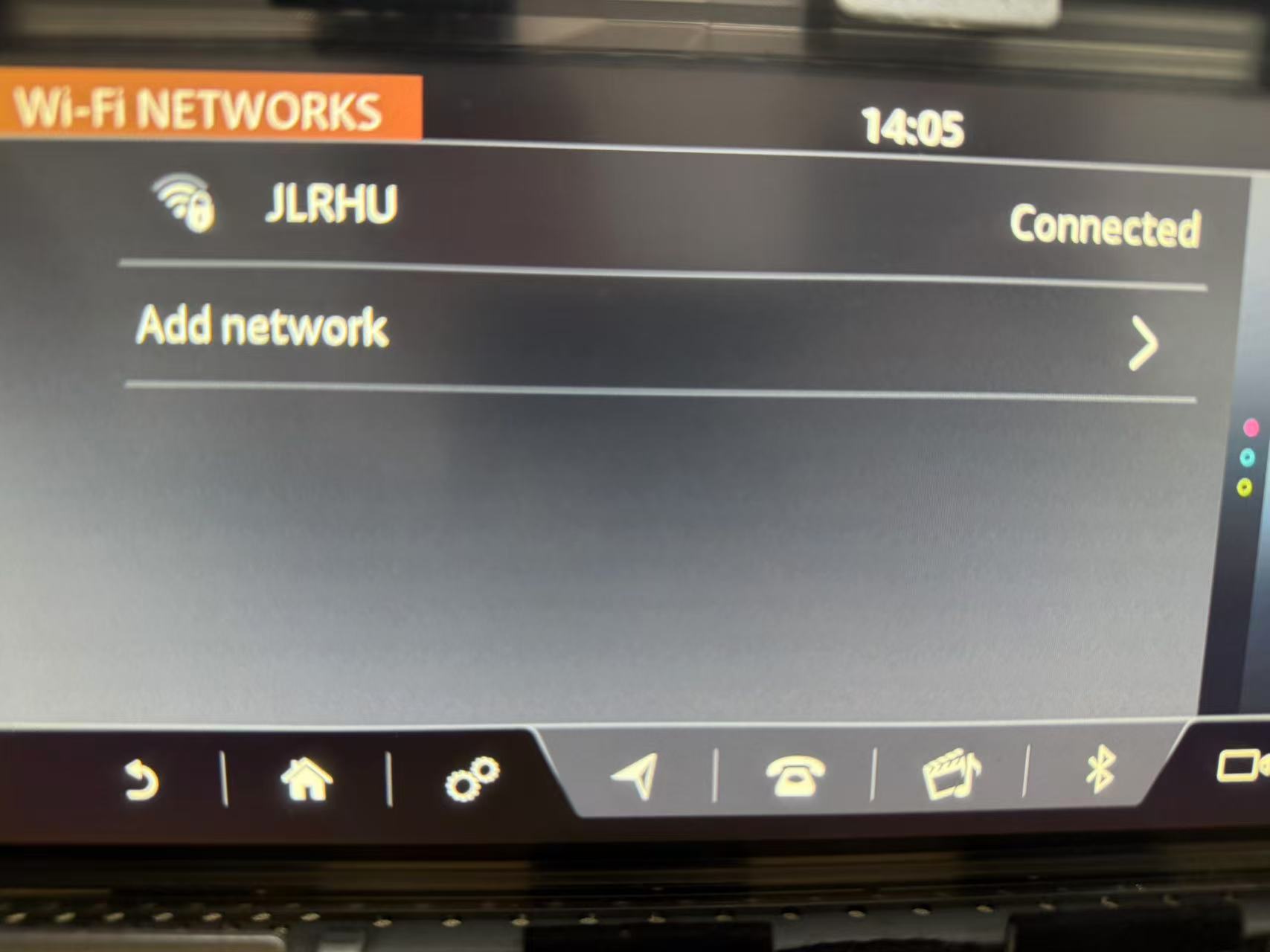
- The IMC must be able to connect to the internet through an external Wi-Fi network.
- A vehicle maintenance charger must be available. The vehicle’s 12 V power supply must be maintained throughout the update process.
- The operator must have a working Comet or Pluto diagnostic device.
-
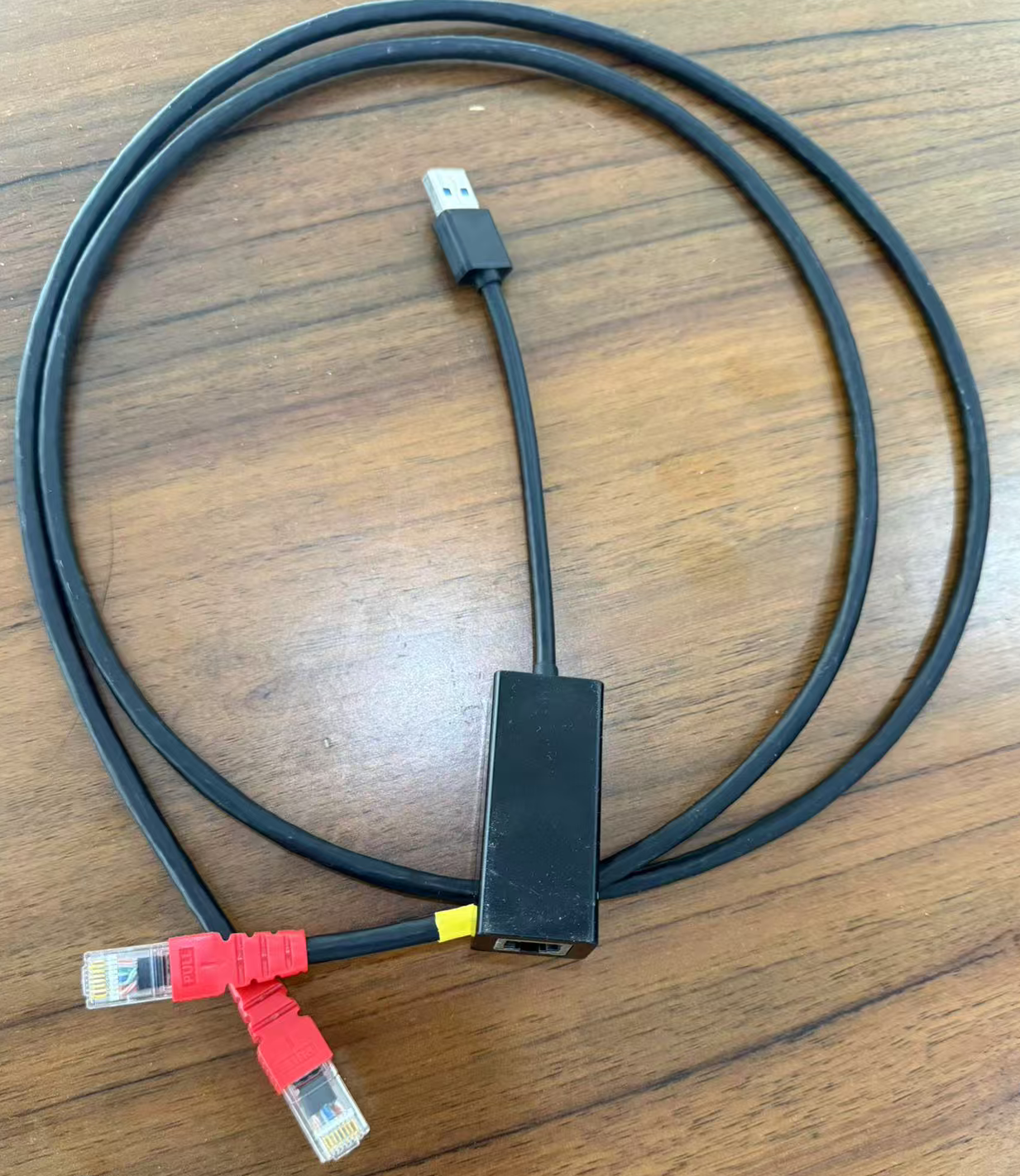
Prepare a USB to RJ45 network adaptor for connecting the IMC to the PC.
The internal chipset must be AX88179; otherwise, it will not be compatible with the IMC and the connection may fail.
It is recommended to search directly for the AX88179 model when purchasing the adaptor. If your diagnostic computer already has an RJ45 port, you only need to purchase one USB adaptor. If your diagnostic computer does not have an RJ45 port, you need to purchase two USB to RJ45 adaptors.
- Prepare one network cable with RJ45 connectors at both ends.
Procedure
- Check that the IMC version and USB connector meet the requirements above before proceeding.
- Set the IMC internal Wi-Fi to connect to an external network. The network connection must be stable and of good quality.
-
Connect your diagnostic device to an external network. The network connection must also be stable and of good quality.
Important: the LAN-side IP range of the external network router must not be 192.168.1.0 – 192.168.1.255. This range will conflict with the IMC and may cause the IMC connection to fail.
- Connect a maintenance power supply to the vehicle to keep the vehicle charged continuously.
- Use Comet or Pluto to connect to the vehicle and enable forced ignition-on mode.
- Use the USB to RJ45 network adaptor to connect the vehicle USB connector to the diagnostic computer.
- Send the AnyDesk remote assistance ID to the service centre.
Appointment Process
After you have checked the vehicle and confirmed that it meets all update requirements, please contact the service centre to arrange an operation time.
service@otadiag.com
WeChat ID: hux8668
Please ensure that your external network has good quality, stable transmission speed and low latency during the operation.
Poor network quality may significantly increase the update time and may cause the update to fail.
Under normal conditions, the standard update process can be completed in approximately 40 minutes.